The Miller MCP server
As of Miller version 6.20, released in July 2026, there are two main ways to get your AI to know about a software tool (Miller, or others): agent skills, and MCP. (See Miller and AI for an introduction.)
Miller ships with a built-in Model Context Protocol server
included within the mlr executable, so AI agents (Claude Code, Claude Desktop, Cursor, and other
MCP clients) can discover and drive Miller without scraping help text or guessing at flags.
The server speaks JSON-RPC over stdin/stdout (MCP's stdio transport): the MCP client spawns mlr
mcp as a subprocess. No network port is opened, and the server exits when the client disconnects.
Setup
Example registration for some common CLI agents (do this before starting your session):
claude mcp add miller -- mlr mcp
Added stdio MCP server miller with command: mlr mcp to local config File modified: /Users/kerl/.claude.json [project: /Users/kerl/git/johnkerl/miller]
codex mcp add miller -- mlr mcp
gemini mcp add miller mlr mcp
You can undo that as follows:
claude mcp remove miller
Removed MCP server "miller" from local config File modified: /Users/kerl/.claude.json [project: /Users/kerl/git/johnkerl/miller]
codex mcp remove miller
gemini mcp remove miller
Then -- just interact with your agent as always! When you say something like describe the data file example.csv,
the agent will already know how to use Miller to help answer that question.
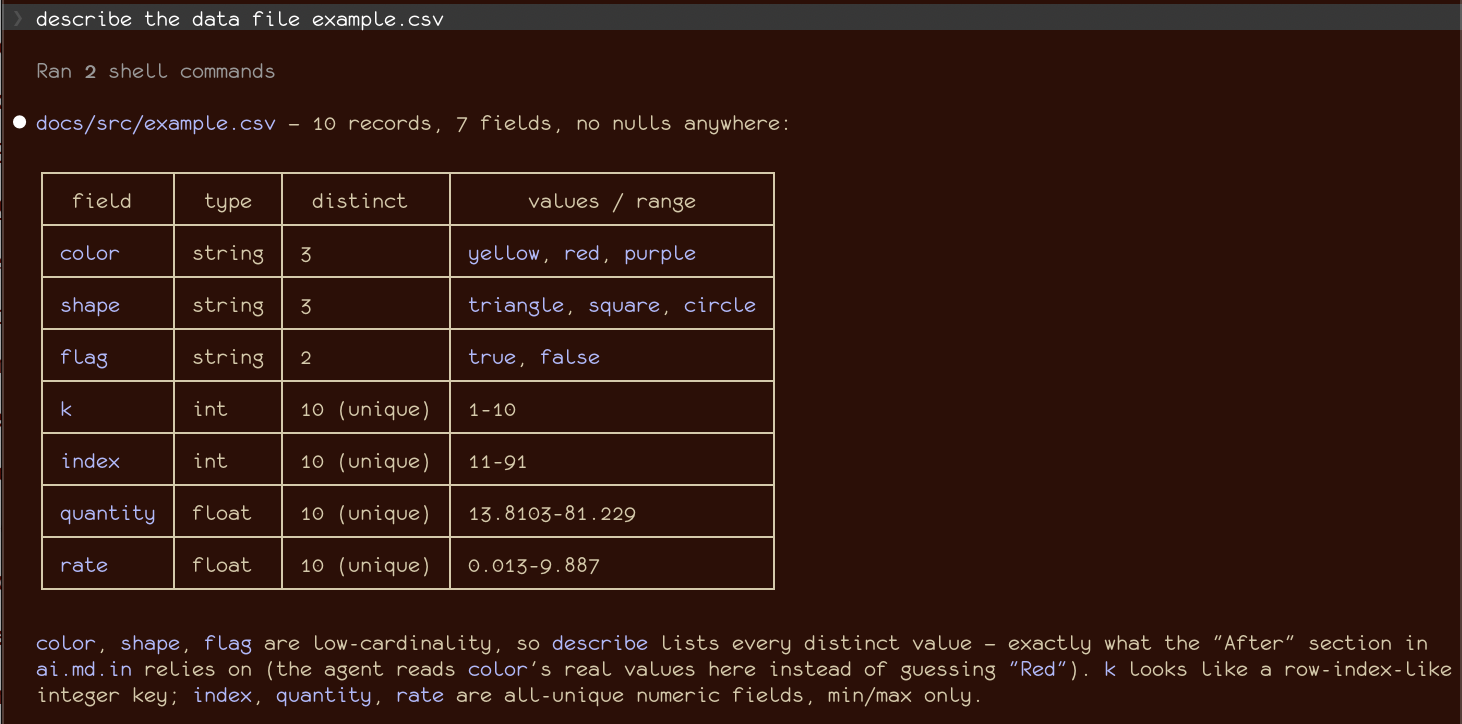
For more background on the mlr commands the agent runs on your behalf, please see
Miller AI internals.
What the Miller MCP tools map to
As shown below, you don't have to type mcp in your agent sessions: rather you've empowered the
agent to discover things about Miller. But if you're curious what the AI agent will see:
mlr mcp --help
Usage: mlr mcp [options]
Runs a Model Context Protocol (MCP) server exposing Miller to AI agents.
The server speaks JSON-RPC over stdin/stdout (MCP "stdio" transport); it is
meant to be spawned by an MCP client rather than run interactively. Example
registration, for Claude Code:
claude mcp add miller -- mlr mcp
Tools exposed:
list_capabilities the mlr help --as-json catalog/index, filterable
which intent -> ranked matching verbs/functions/flags/keywords
validate_dsl parse/type-check a put/filter expression without running it
describe_data field names/types/cardinality/values of input data
run run an mlr command line
Also exposed: an agent playbook, as MCP prompt "miller-playbook" and MCP
resource "miller://playbook", encoding the discover -> constrain -> validate
-> run loop.
Commands started by the run/validate_dsl/describe_data tools are run with
MLR_NO_SHELL=1 -- the DSL system/exec functions, piped redirects, and
--prepipe/--prepipex fail cleanly -- and with MLR_ERRORS_JSON=1 so errors
come back structured.
Options:
--allow-shell Do not set MLR_NO_SHELL=1 on subprocesses, re-enabling
the DSL system/exec functions for agent-run commands.
--timeout {seconds} Default wall-clock limit for the run tool (default 60).
--max-output-bytes {n} Cap captured stdout/stderr per command (default 1048576).
-h or --help Show this message.
Each MCP tool is a thin wrapper over a Miller feature you can also, if you like, use directly from the command line:
list_capabilitiesismlr help --as-json: the machine-readable catalog of verbs, DSL functions, flags, and keywords.whichismlr which: turns natural-language intent into ranked capabilities.validate_dslismlr put --explain/mlr filter --explain: to parse and type-check a DSL expression before reading any input files.describe_dataismlr describe: this shows field names, types, cardinality, and value domains for input data.runexecutes anmlrcommand line and reports exit code, output, and -- on failure -- the structured error document frommlr --errors-json.
See also the Miller AI internals page for more information.
What Miller MCP looks like in practice
Here are some screenshots from a Claude Code session.
At the shell, before starting claude, we've first run
claude mcp add miller -- mlr mcp
Added stdio MCP server miller with command: mlr mcp to local config
File modified: /Users/kerl/.claude.json [project: /Users/kerl/git/johnkerl/miller]
Then, inside Claude code, we type /mcp:

Then we select Miller:

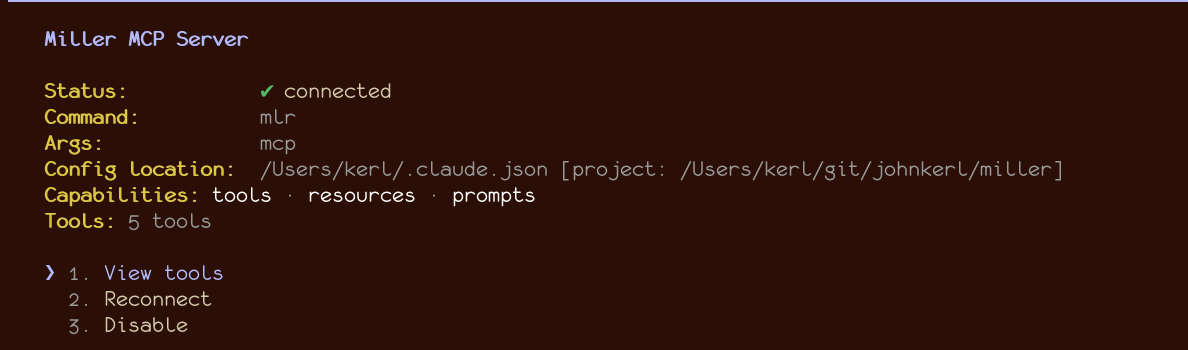
The status shows it's installed. Note that there is no long-running Miller "server" process: this is
just Claude remembering to run things like mlr mcp ... in order to get how-to instructions from
the mlr executable you already have installed.
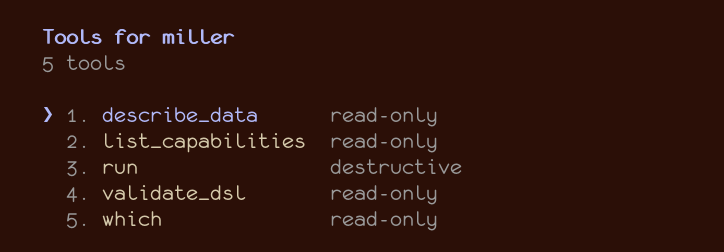
The MCP tools are names for Claude to remember -- you don't have to. For transparency, though, here they are:
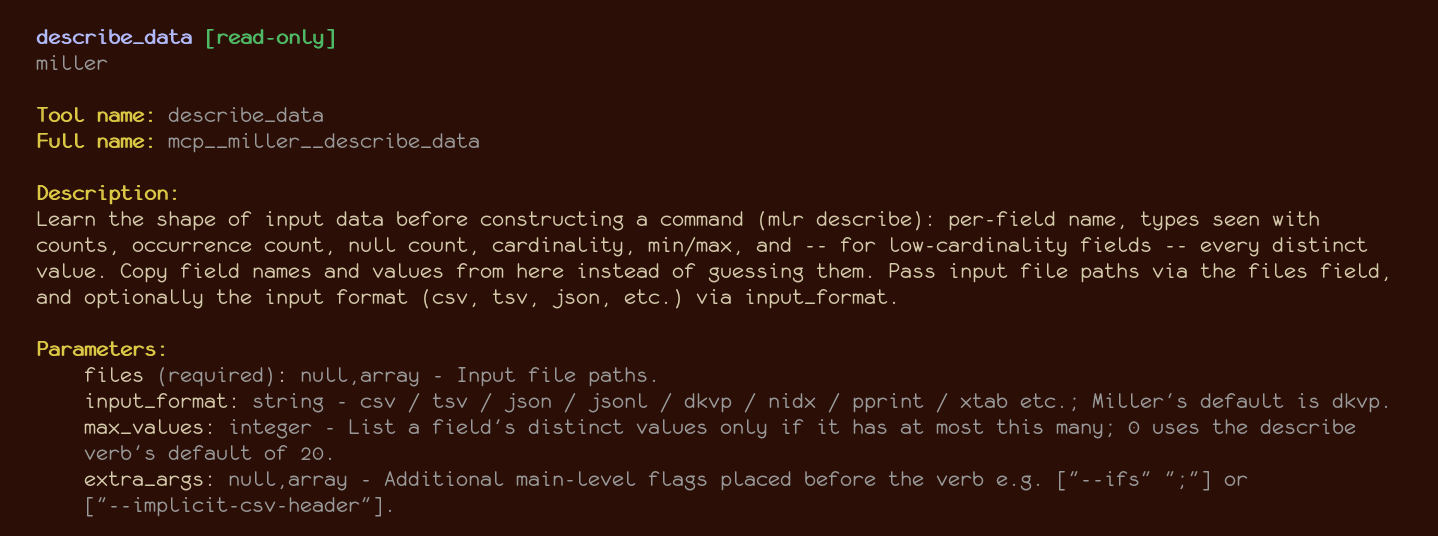
Here are descriptions of a couple of them:
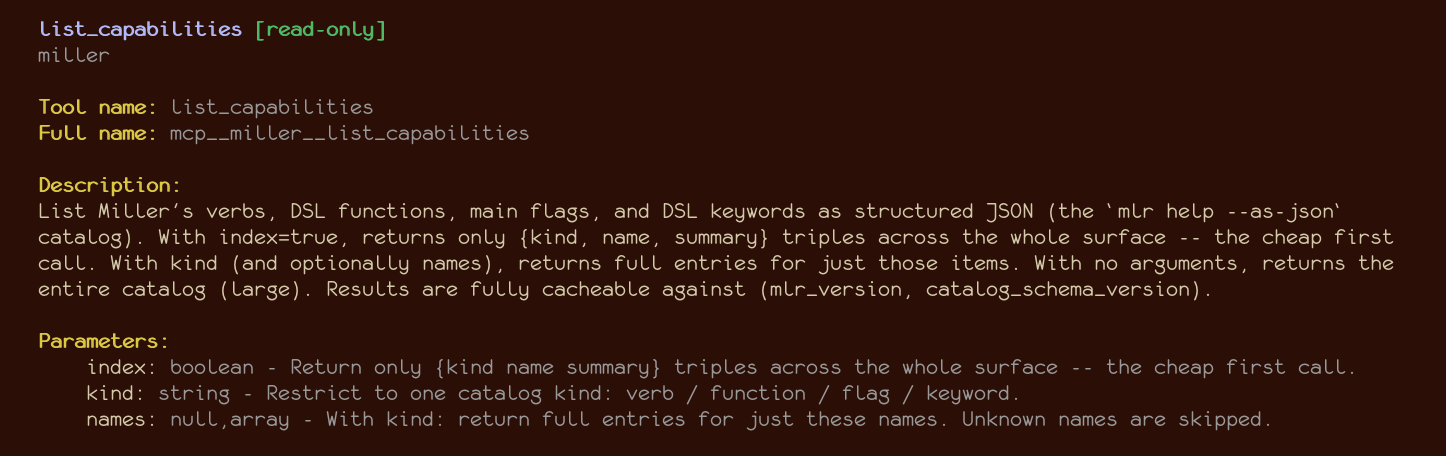
When you're in your AI session, you don't have to type mcp or the specific names of Miller MCP tools.
Rather, you just interact as always, and the AI remembers to call Miller MCP tools on your behalf.
For example:
A note on sandboxing
Miller's DSL includes system and exec, and
--prepipe/piped redirects also run external commands. So that an
agent-constructed command line doesn't imply arbitrary command execution,
subprocesses started by the MCP server run with MLR_NO_SHELL=1: those
features fail cleanly instead of executing. Start the server with
mlr mcp --allow-shell to turn that off.
The same gate is available outside the MCP server: pass --no-shell to any mlr invocation, or set
the MLR_NO_SHELL environment variable to true. Note that Miller
can still write files when asked to (tee, split, DSL output redirection): the gate is
specifically about executing external commands.